
How to invite a tenant
Open the Invite Tenants section from your landlord dashboard.
On this page
1. Go to "Invite Tenants"
Open the Invite Tenants section from your landlord dashboard.
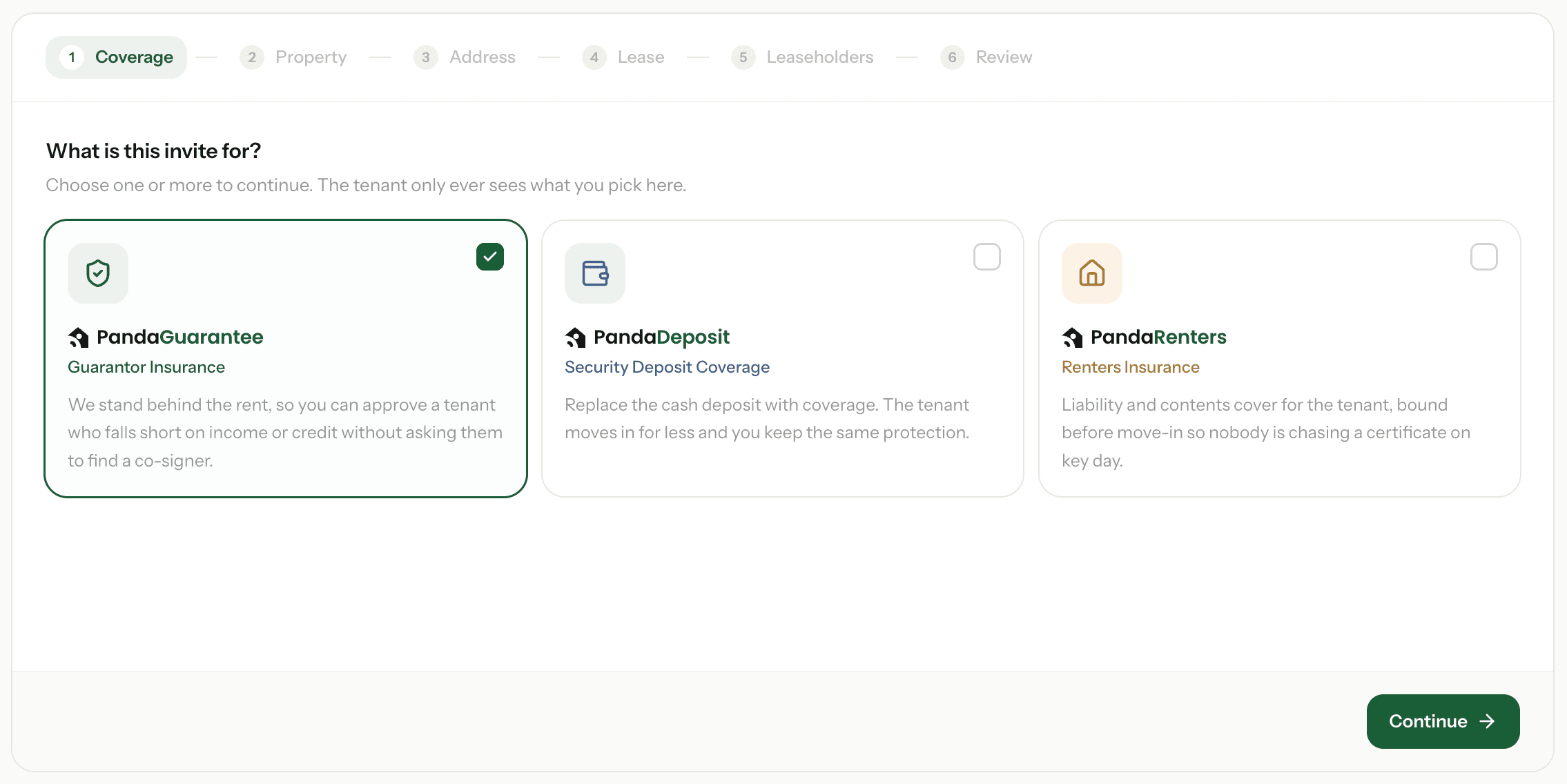
2. Select the products
We have three products to choose from: PandaGuarantee, PandaDeposit and PandaRenters. Select all that apply.
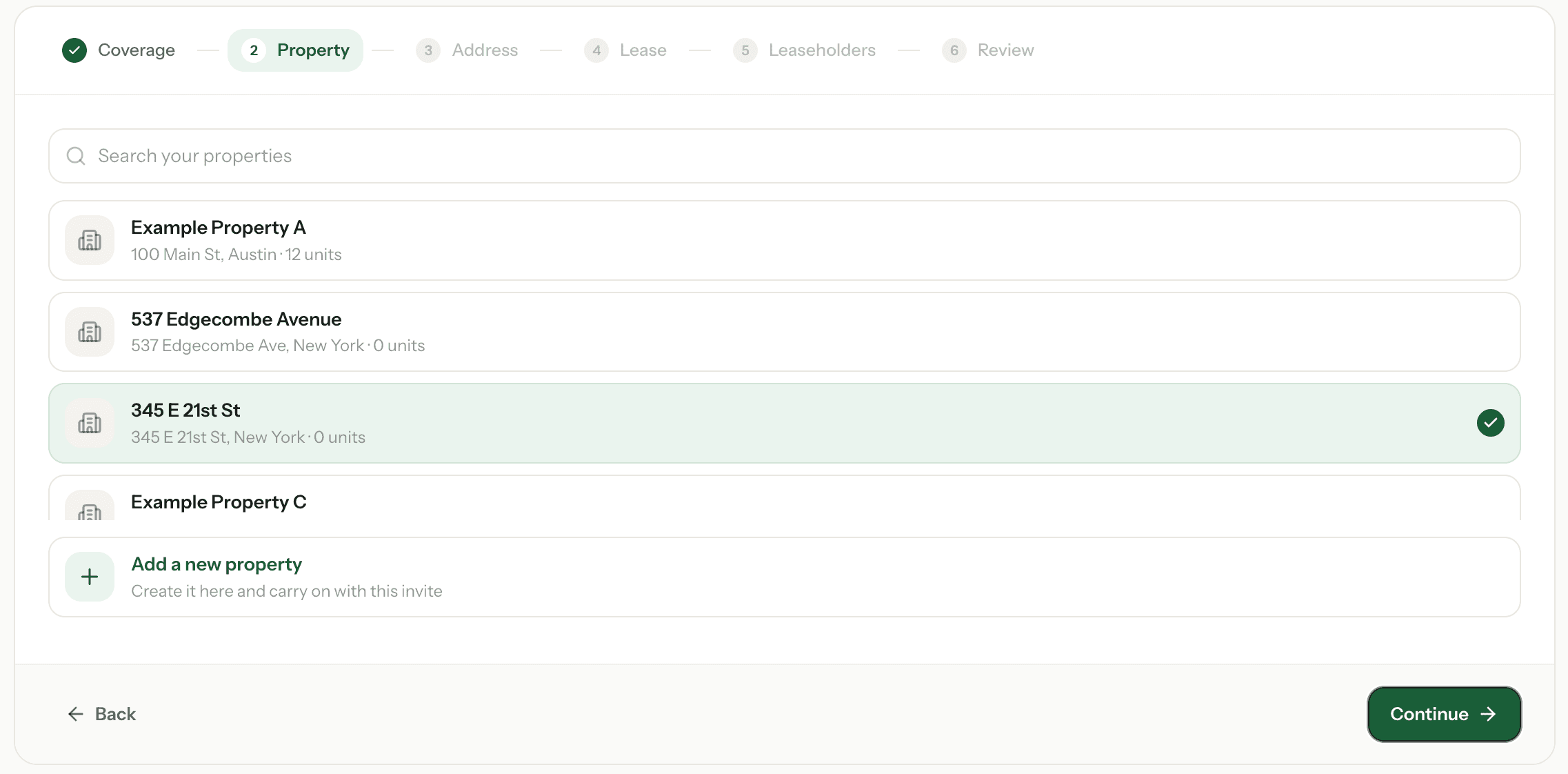
3. Select the property
Choose the property where the tenant will be renting. If you don't see the property listed, you'll have add your property.
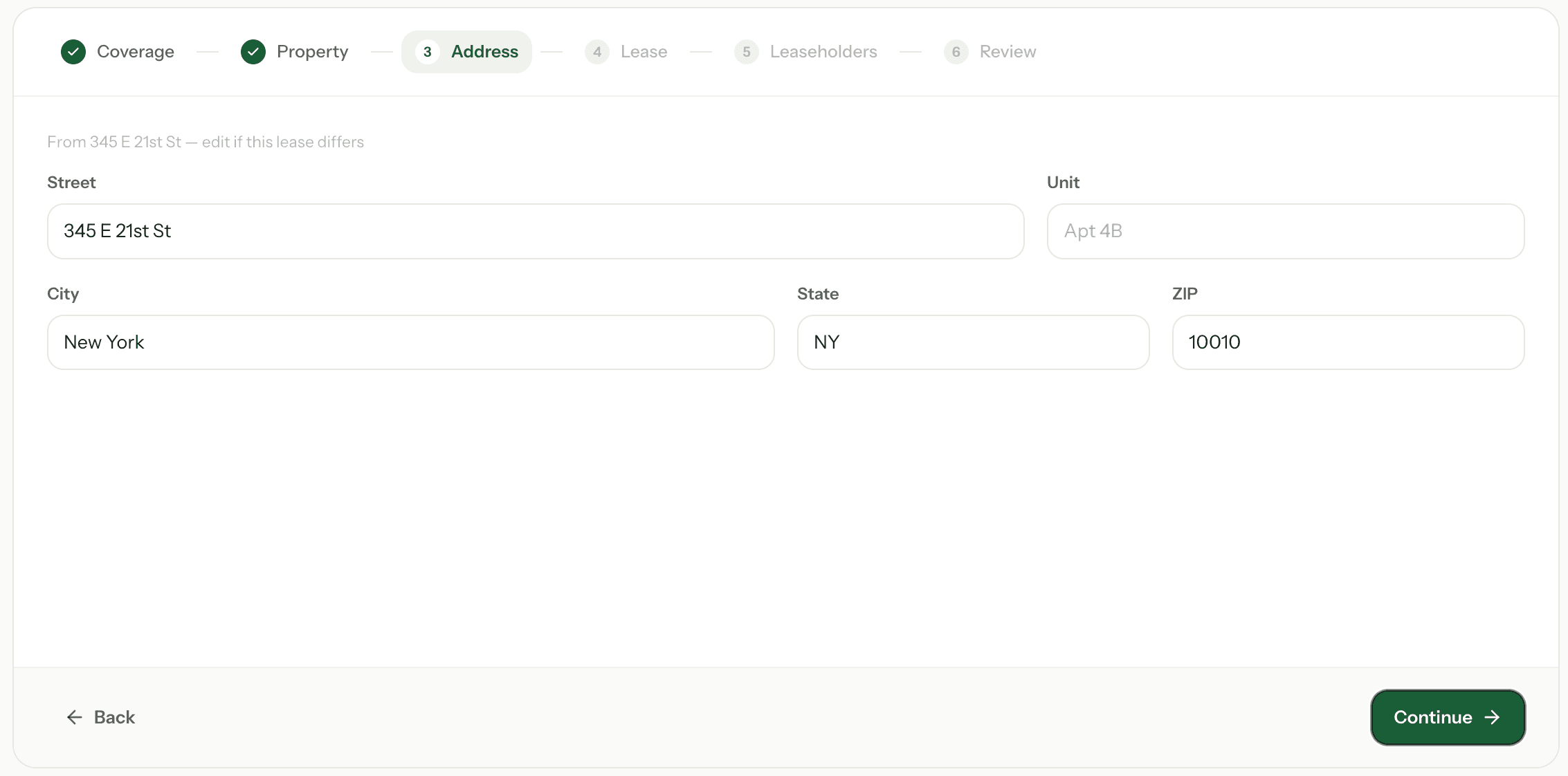
4. Confirm the Lease Address
The lease address will be automatically populated from the building or community address. If needed, you can manually update the address and add the apartment or unit number for the tenant’s lease.
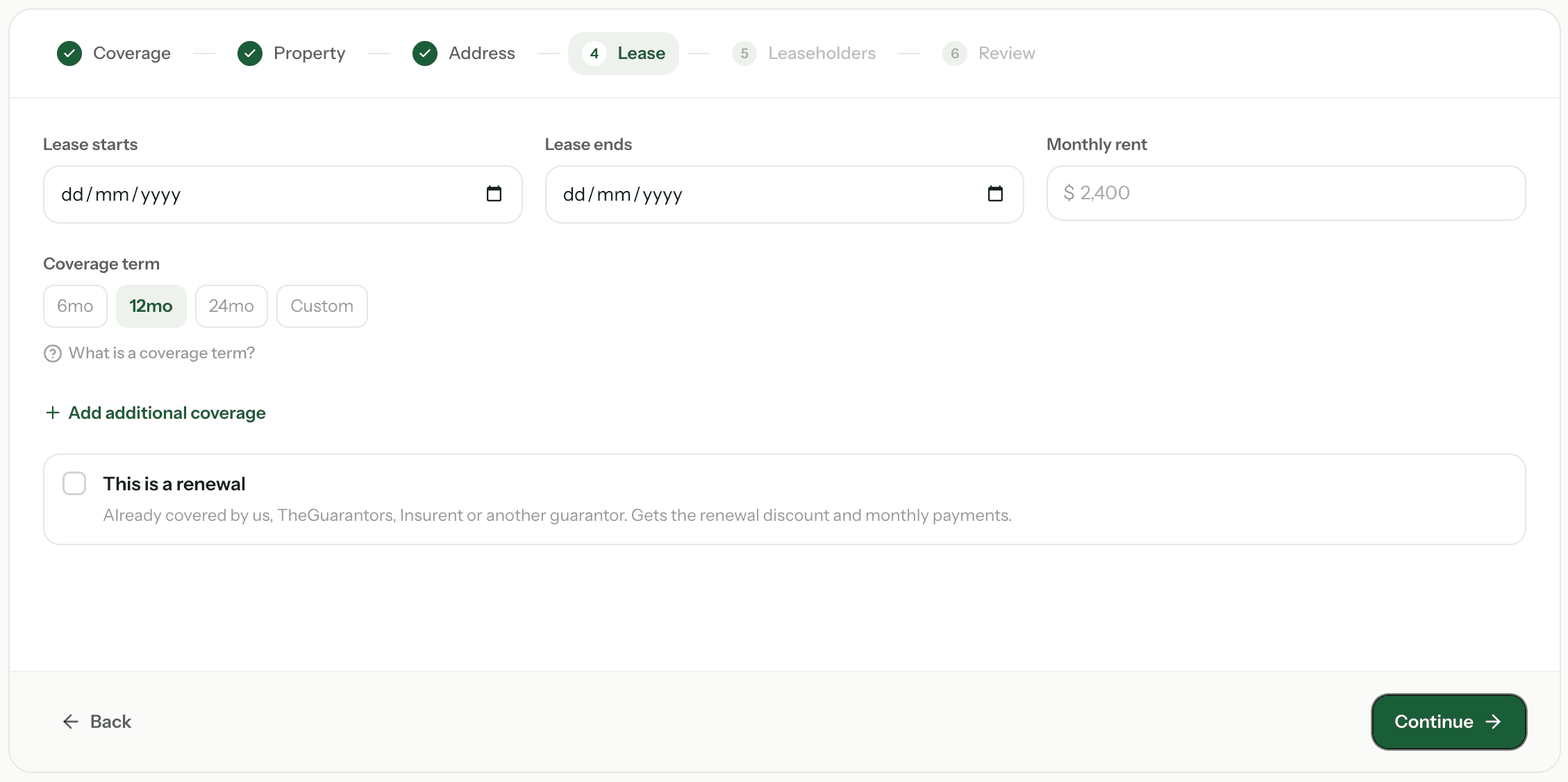
5. Fill in the lease details
Enter the lease information. These details will be pre-filled in the tenant’s application.
If any information is missing, or you skip this step, then you will receive an automated email asking to confirm these details after the tenant has applied.
Note
Coverage Term — The maximum number of months of unpaid rent covered by the bond. For example, selecting 6 months provides coverage for up to 6 months of unpaid rent.
Additional Coverage — Covers certain additional lease-related charges, such as amenity fees or utilities, subject to the policy terms.
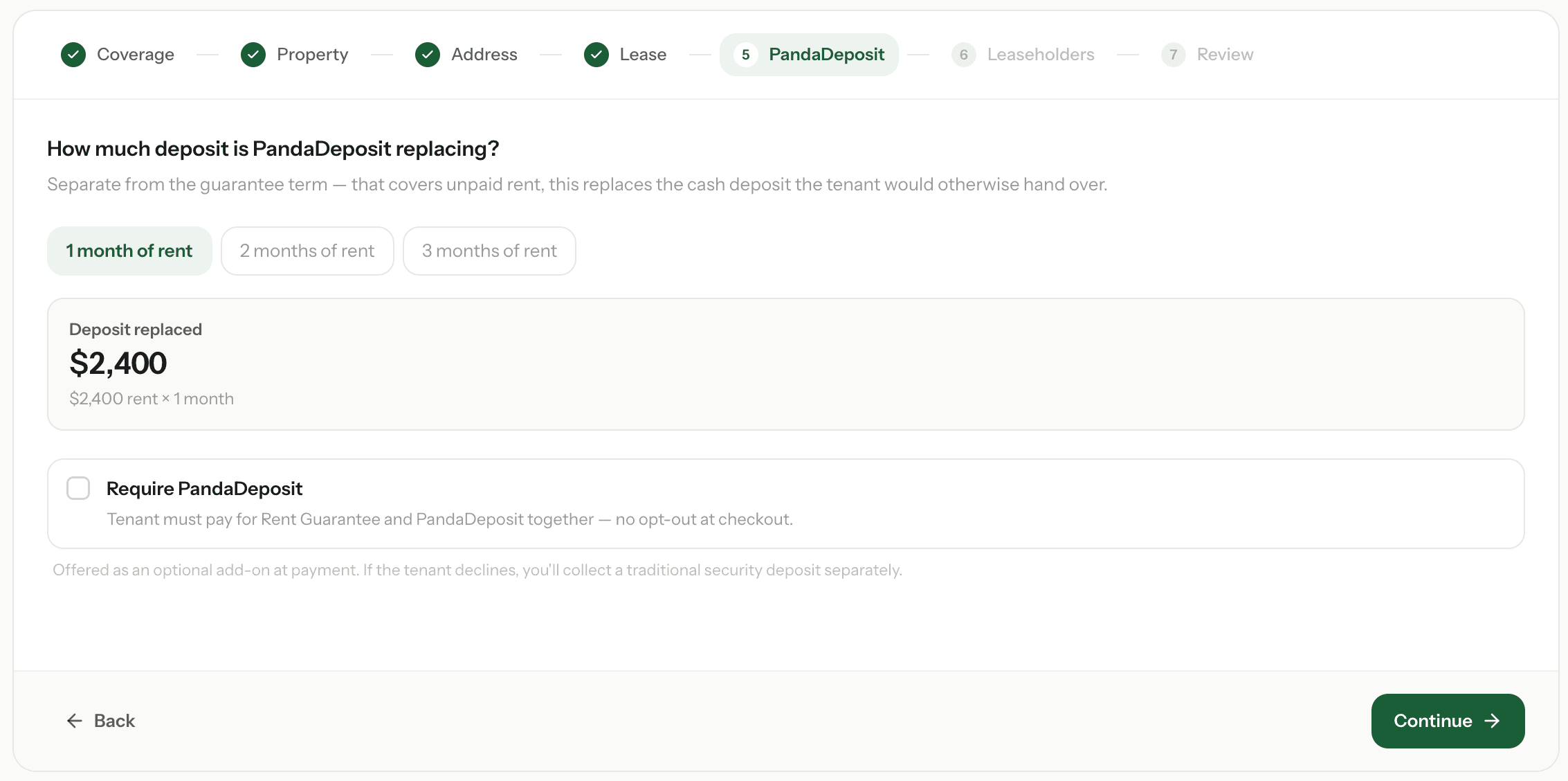
6. Add PandaDeposit (Optional)
Enter the security deposit amount and whether it's required.
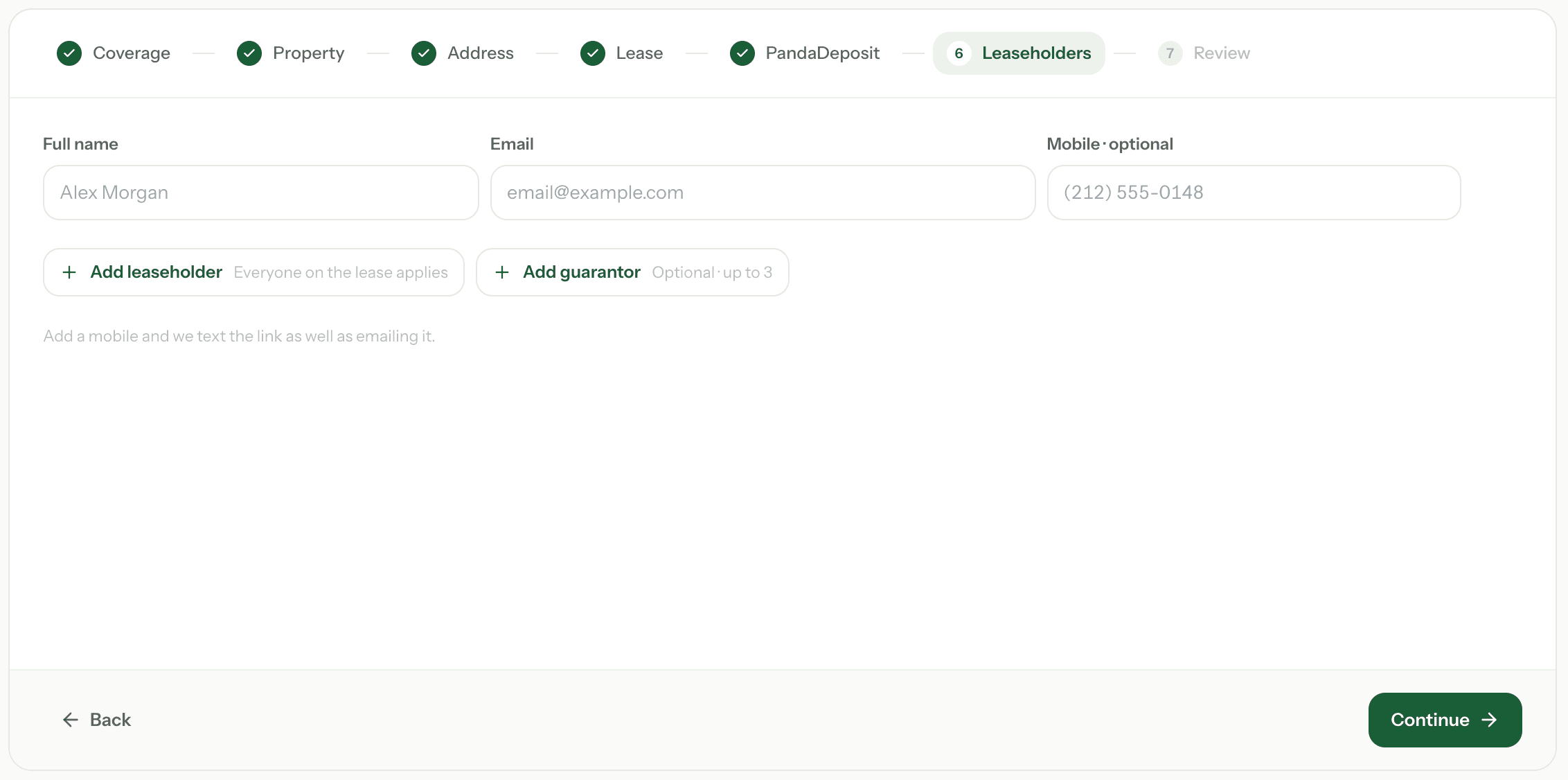
7. Add leaseholder details
Enter the primary leaseholder’s information and add any additional roommates.
8. Add personal guarantor details (Optional)
If the tenant has a personal guarantor, enter the guarantor’s information. Adding them to the application will likely reduce the tenant's premium. Skip this step if no guarantor is available.

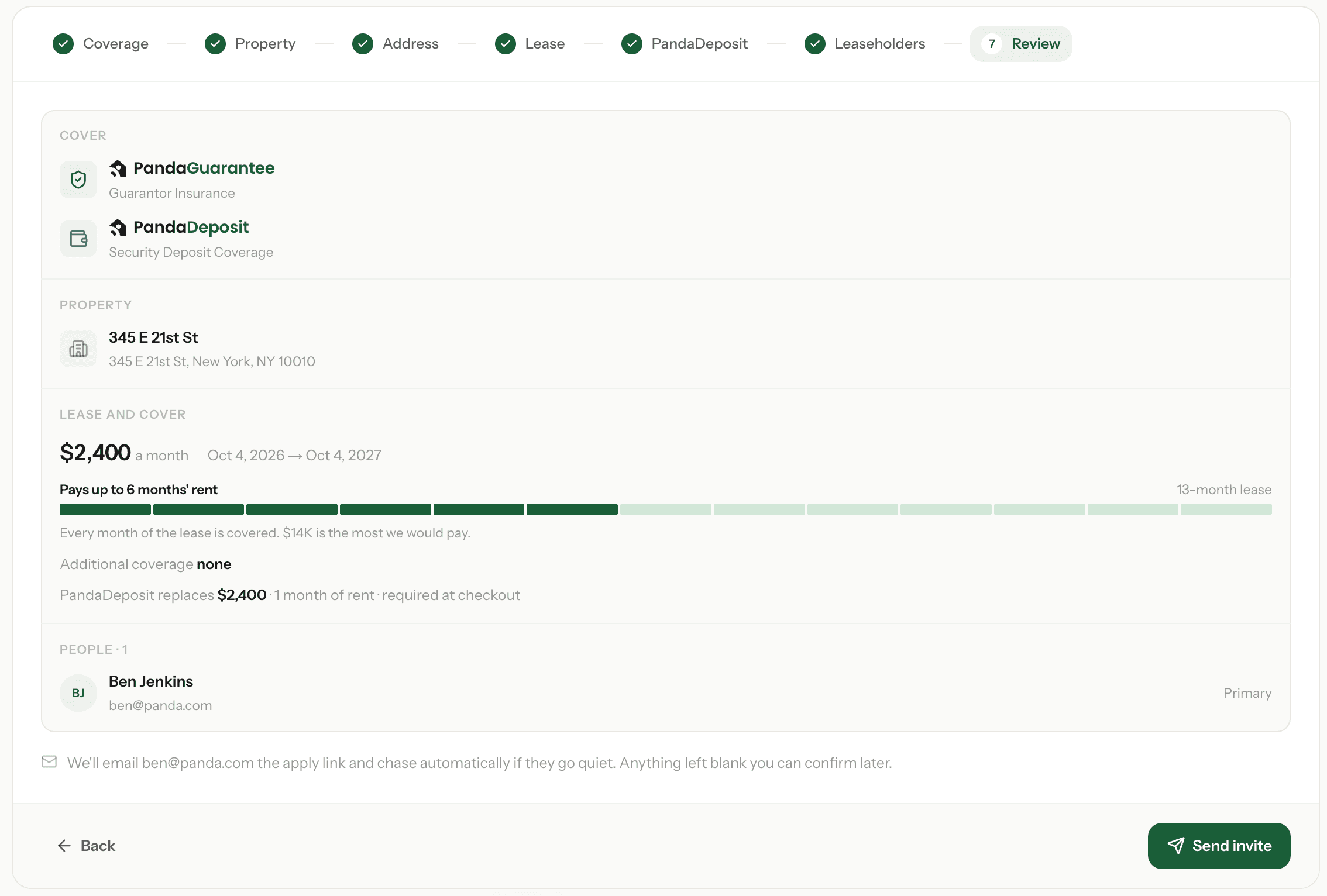
9. Review the application and Click "Send application"
Review all information to make sure it is accurate, then click Send Application. The tenant will receive an email or text message with a link to complete their PandaGuarantee application.
Didn't find what you needed?
Ask our team