
Add and Manage Sub-Users
Sub-users allow you to give members of your team access to your PandaGuarantee landlord account while controlling what they can access, and controling what notifications they will receive.
1 min readUpdated October 16, 2026
On this page
Sub-users allow you to give members of your team access to your PandaGuarantee landlord account while controlling what they can access, and controling what notifications they will receive.
Sub-user roles
- Admin
Admins have dashboard access and can also invite and manage sub-users. - Member
Members have dashboard access only. Their access can be limited to the specific properties they manage.
Add a sub-user
- 1Go to the Settings Page
From your Landlord sidebar click Settings, then select the Sub users tab - 2Click “Invite User”
Go to the Sub-Users section in your landlord dashboard and Click "Invite User".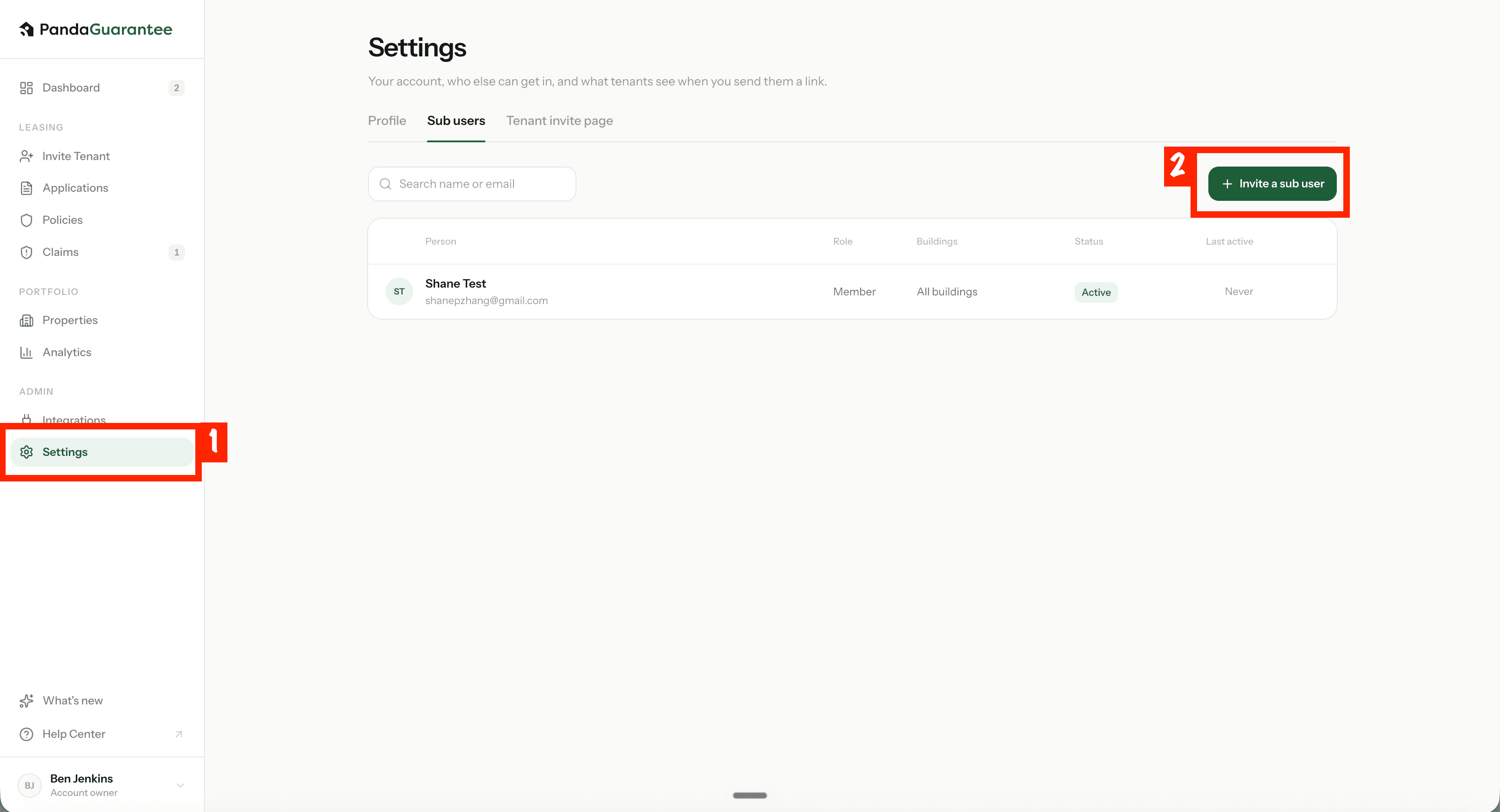
- 3Enter Details and Assign Access
Enter the team member’s first name, last name, and email address, then select their role and property access. If the sub-user isn’t a person, you can use any first and last name.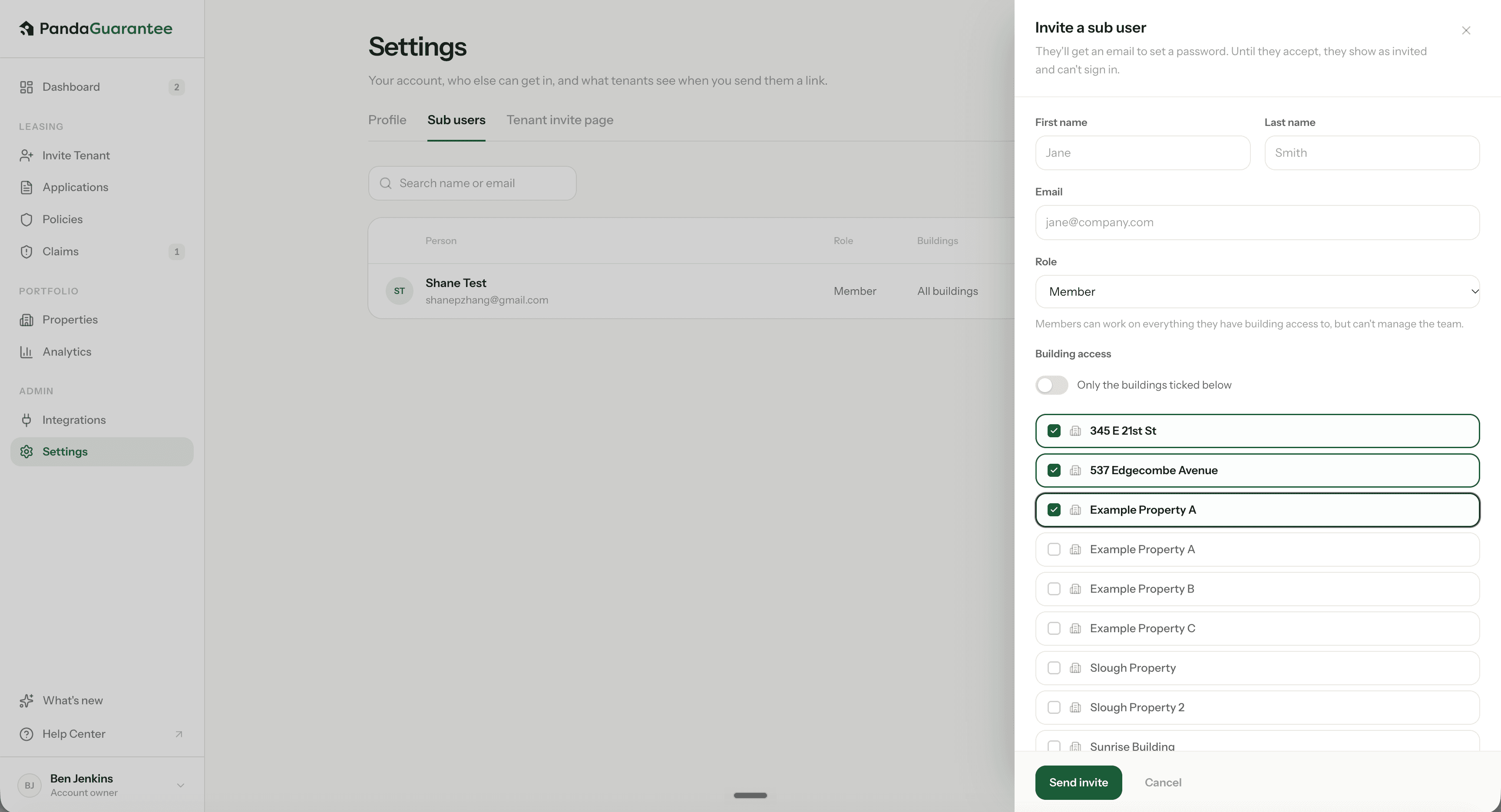
Note
Building Access:
All – The sub-user can access all buildings under your account.
Select Buildings – The sub-user can only access the buildings you select.
- 4Send the invitation
Click “Invite User” to send the invitation email. - 5Invitation accepted
Once the invitation is accepted, the sub-user can access the landlord dashboard based on their assigned permissions.
Didn't find what you needed?
Ask our team