
How to connect Rent Manager
If you run your portfolio in Rent Manager, you can connect it to PandaGuarantee. Your properties and units come across automatically, and you can invite a tenant by setting one field on…
On this page
- Step 1: Enable PandaGuarantee in Rent Manager
- Step 2: Connect from your PandaGuarantee dashboard
- Step 3: Check any properties we couldn't match
- Step 4: Choose what tenants are invited to
- Step 5: Invite a tenant from Rent Manager
- If an invite isn't sent
- Troubleshooting the connection
- Disconnecting Rent Manager
If you run your portfolio in Rent Manager, you can connect it to PandaGuarantee. Your properties and units come across automatically, and you can invite a tenant by setting one field on their record in Rent Manager. Their progress then shows on that same record.
Note
Before you start
- Only the account owner can connect Rent Manager.
- You'll need someone with Admin access in Rent Manager for Step 1.
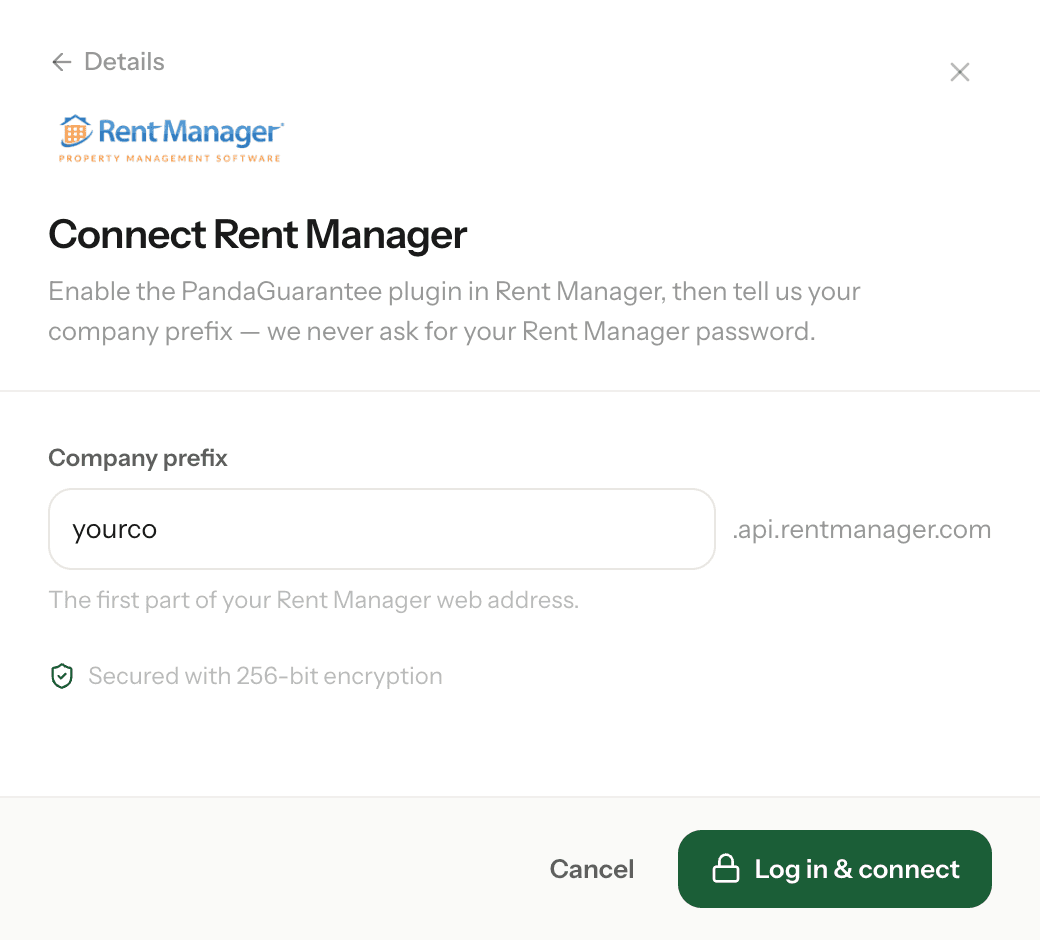
- Have your company prefix ready. It's your Rent Manager Corporate ID, the first part of your Rent Manager web address. For example, yourco in yourco.api.rentmanager.com.
- We never ask for your Rent Manager username or password.
Step 1: Enable PandaGuarantee in Rent Manager
- 1In Rent Manager, go to Admin → Available Integrations.
- 2Search for PandaGuarantee and click Request Activation.
- 3Confirm your contact details, then select the locations and properties you want to connect. Properties you leave out won't sync. PandaGuarantee doesn't need access to your banks.
- 4Click Request Activation to send the request.
Rent Manager sends the request to us and we switch the integration on. Once it's active, carry on with Step 2.
Step 2: Connect from your PandaGuarantee dashboard
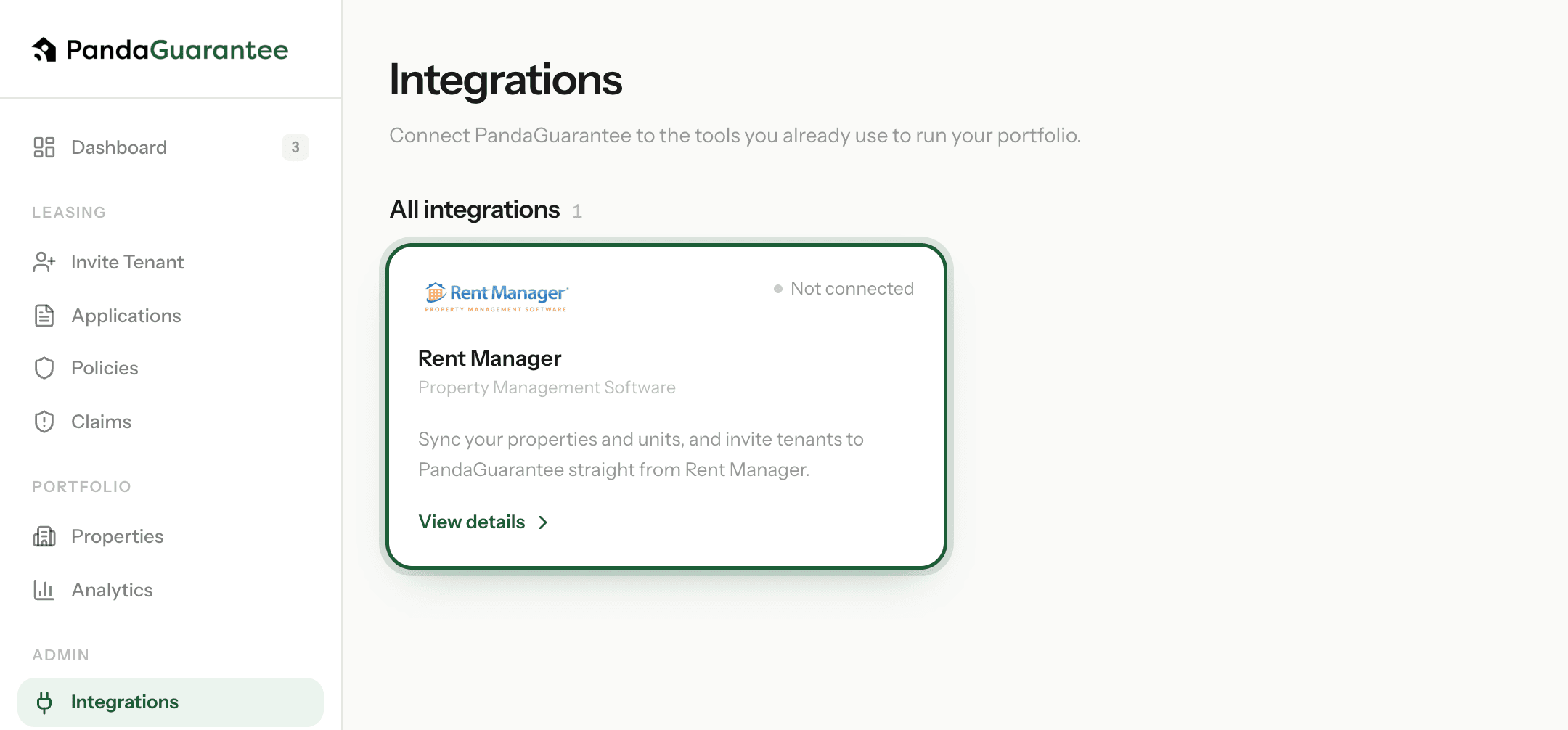
Open Integrations. In your dashboard, click Integrations under Admin in the left-hand menu. Rent Manager is listed under All integrations.
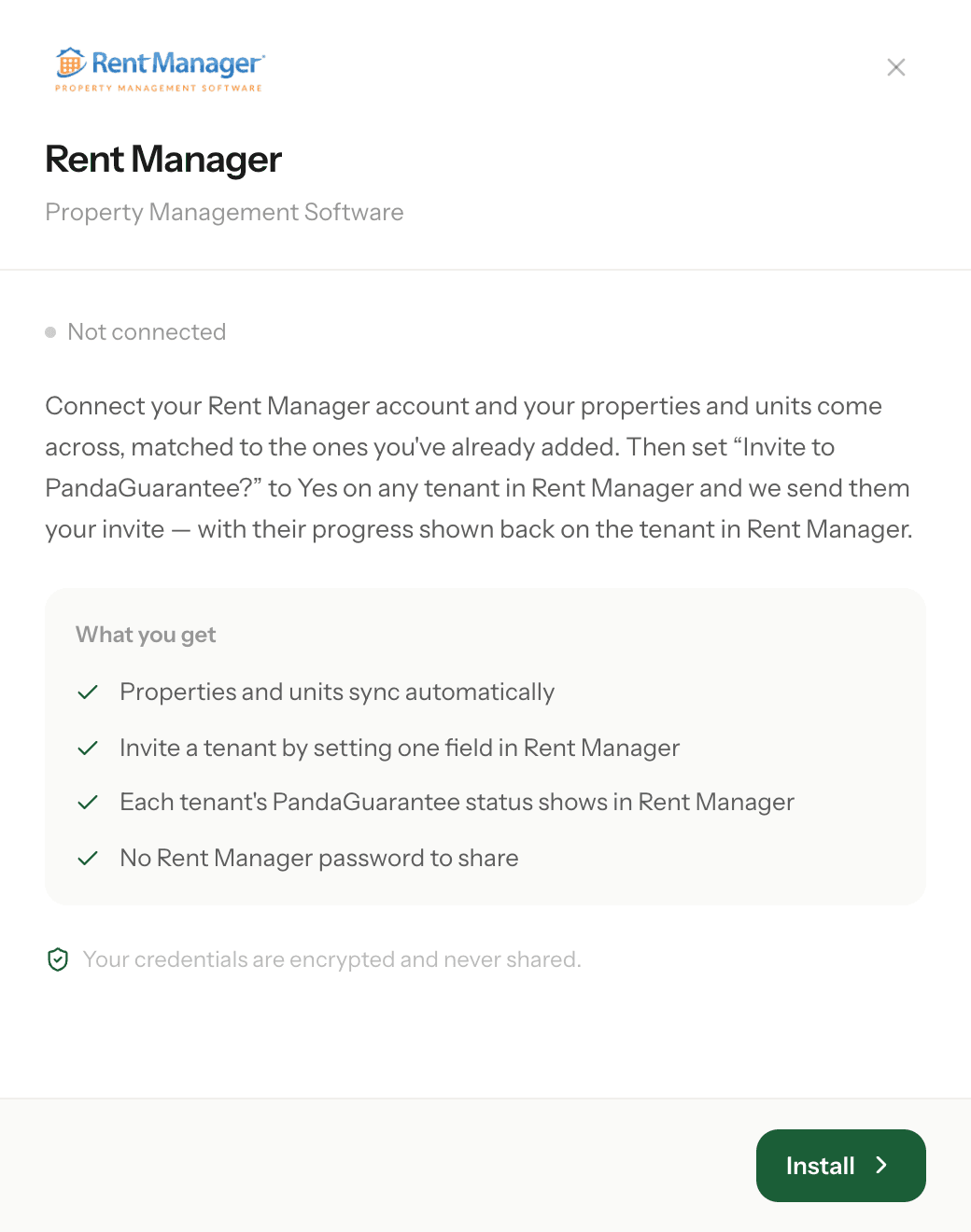
Start the install. On the Rent Manager card, click View details, then Install.
Enter your company prefix and click Log in & connect.
Your properties and units start syncing straight away. When they're done, you'll see how many came across.

Step 3: Check any properties we couldn't match
We match each Rent Manager property to the properties already in your PandaGuarantee account. If we're not sure about one, it appears under Needs your review on the Integrations page. For each one, choose:
- Link to this property to accept the match we suggest.
- Choose a different property, then Link, if it's a different one of yours.
- Add as new property if it isn't in PandaGuarantee yet.
You can't invite tenants at a property until it's been reviewed.
Step 4: Choose what tenants are invited to
Under Tenant invites, choose what a tenant gets when you flag them in Rent Manager:
- PandaGuarantee: the rent guarantee, priced on the tenant's rent in Rent Manager.
- PandaDeposit: replaces the security deposit. Choose 1, 2 or 3 months of rent. If you've also chosen PandaGuarantee, switch on Required if PandaDeposit isn't optional for the tenant.
- PandaRenters: renters insurance, offered at New York properties only.
Then switch Tenant invites On. Nothing is sent while it's off.
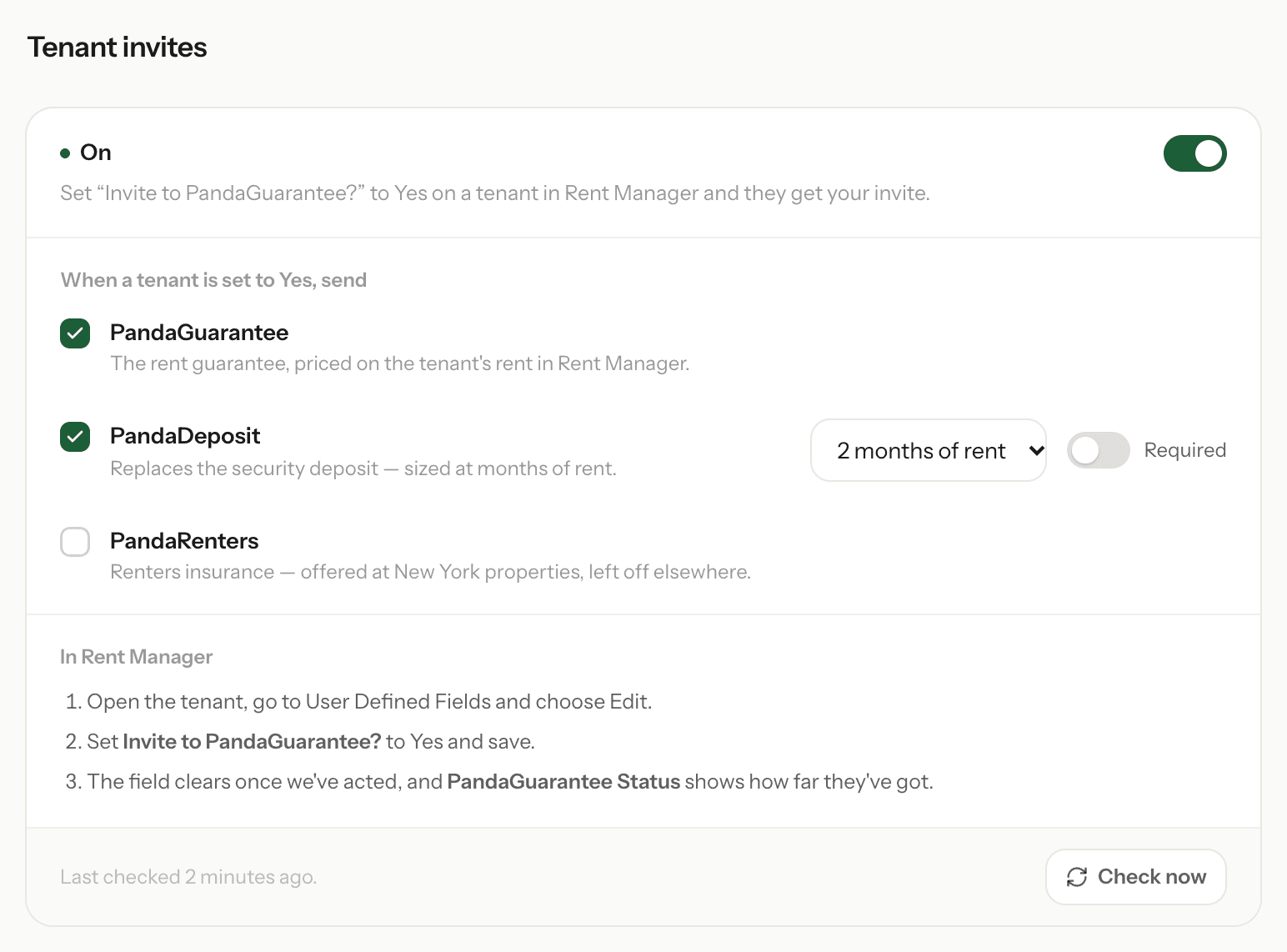
Step 5: Invite a tenant from Rent Manager
- 1In Rent Manager, open the tenant and go to User Defined Fields.
- 2Click Edit. The Invite to PandaGuarantee? field only appears in Edit mode.
- 3Set Invite to PandaGuarantee? to Yes and save.
We send the tenant your invite within a few minutes. To check straight away, click Check now under Tenant invites.
Back in Rent Manager:
- Invite to PandaGuarantee? clears back to blank.
- PandaGuarantee Status shows where the tenant is, for example Invite sent Oct 8, Application in review or Covered by PandaGuarantee.
- A note is added to the tenant's history saying who we emailed.
Tip
For an invite to go out, the tenant needs an email address on their primary contact, a current lease and a recurring rent charge in Rent Manager.
If an invite isn't sent
The PandaGuarantee Status field in Rent Manager and the list under Tenant invites both say why. The most common reasons:
- Not sent: add an email to the primary contact: add one in Rent Manager, then set the field to Yes again.
- Not sent: no current lease: the tenant needs a current lease in Rent Manager.
- Not sent: add a recurring rent charge: we price the invite from the tenant's rent, so add their rent charge.
- Not sent: property needs review in PandaGuarantee: review the property under Needs your review (Step 3).
- Already invited, Invite sent in the last 12 hours or Already applied: the tenant already has an invite, so there's nothing to do.
- Not sent: error. Set to Yes again to retry: set the field to Yes again. If it keeps happening, contact support.
Troubleshooting the connection
- “Rent Manager didn't grant us access to that company.” Either the integration hasn't been activated yet (Step 1), or the company prefix is wrong. Check both and try again.
- “Connected — we couldn't load your portfolio yet.” Click Retry sync.
- “Tenant invite automation isn't set up yet.” Your properties still sync normally, but we couldn't add the Invite to PandaGuarantee? field in Rent Manager. Contact support and we'll sort it out.
- “Only the account owner can manage integrations.” Ask the account owner to connect Rent Manager from their login.
Disconnecting Rent Manager
On the Integrations page, open the Rent Manager card, click Disconnect, then Confirm disconnect. Syncing and tenant invites from Rent Manager stop. Properties already in your PandaGuarantee account, and invites already sent, aren't affected.
Need a hand? Email support@pandaguarantee.com or call 332-290-1800 ext. 2.
Didn't find what you needed?
Ask our team